
The Quick Order feature reduces the order process to several clicks for customers who know the product name or SKU of the products they want to order. Orders with multiple SKUs can be entered manually, or imported into the Quick Order form. Quick order can be used by customers who are logged in to their accounts, and by guests. The Quick Order link appears on the Service menu.
You can specify products for quick orders using either of the following methods.
Enter individual products
-
- Click the Quick Order link.
-
- Enter the item number
-
- Click Add to List.
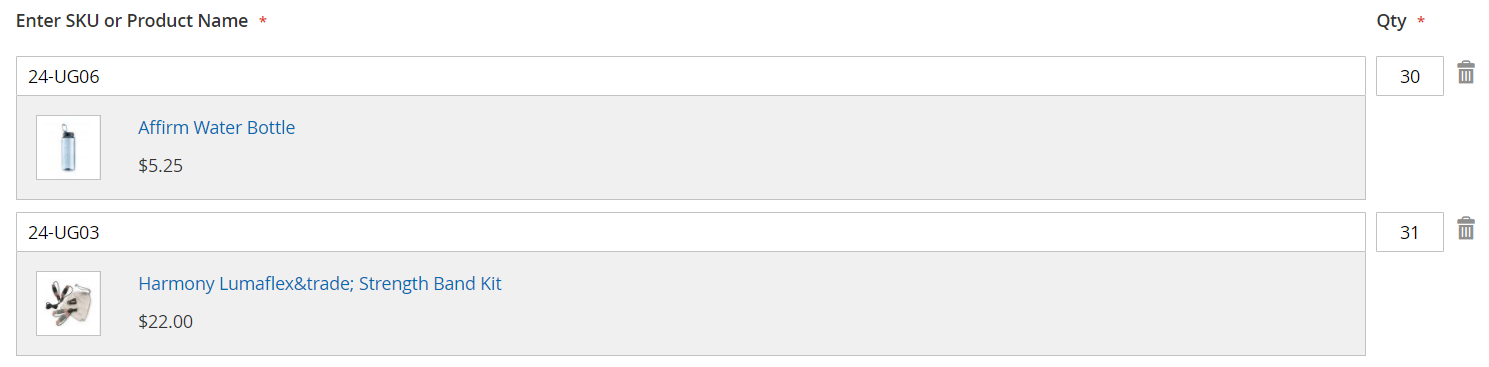
The SKU appears in the input line, with the product detail below.

-
NOTE
Do not use the Enter key to choose the name of the product.
-
- When the list of possible matches appears, the customer clicks the product that they want to order.
-
-
- Enter the Qty.
-
- Repeat this process as many times as necessary.
-
- Click Add to Cart.
Enter multiple products
-
- In the Enter Multiple SKUs box, do one of the following: Enter one SKU per line or enter all SKUs on the same line, separated by commas, and without spaces.

-
- To add the products to the list, click Add to List.
-
- Enter the Qty to be ordered for each item in the list.
Upload a list of products
-
- In the Add from File section, click Download Sample to download an order template.

-
- Open the downloaded file.
-
- Use the template to add the product item numbers to upload for the Quick Order list.
-
- When complete, click Save.

-
- To upload the file, click Choose and select the file from your system.
- The items are added to the Quick Order list.
-
- When ready, click Add to Cart.
After you create the quick order using any of the above methods, you can proceed through checkout as usual.
Comments
0 comments
Please sign in to leave a comment.