
Add company users
-
- From the storefront, the company administrator can sign in to their account and navigate to the My Account Homepage.
-
- In the left panel, choose Company Users.
-
- Click Add New User and do the following:
- Enter the Job Title of the new user.
- Choose the appropriate User Role if the roles and permissions are defined. Otherwise, you can return later to assign the role.
- First Name and Last Name
- Phone Number
- By default, the Status of the account is
Active.
-
When complete, click Save.
- Repeat the process to create as many company users as needed.
The new users appear in the Company Users list, along with the Company Administrator.
Edit company users
-
- From the storefront, the company administrator can sign in to their account.
-
- In the left panel, choose Company Users.
-
- Find the user record to be updated, and click Edit.
-
- Make the needed changes.
-
- When complete, click Save.
Remove a company user
- From the storefront, the company administrator can sign in to their account.
- In the left panel, choose Company Users.
- Select the company user in the company structure.
- Click Delete Selected.
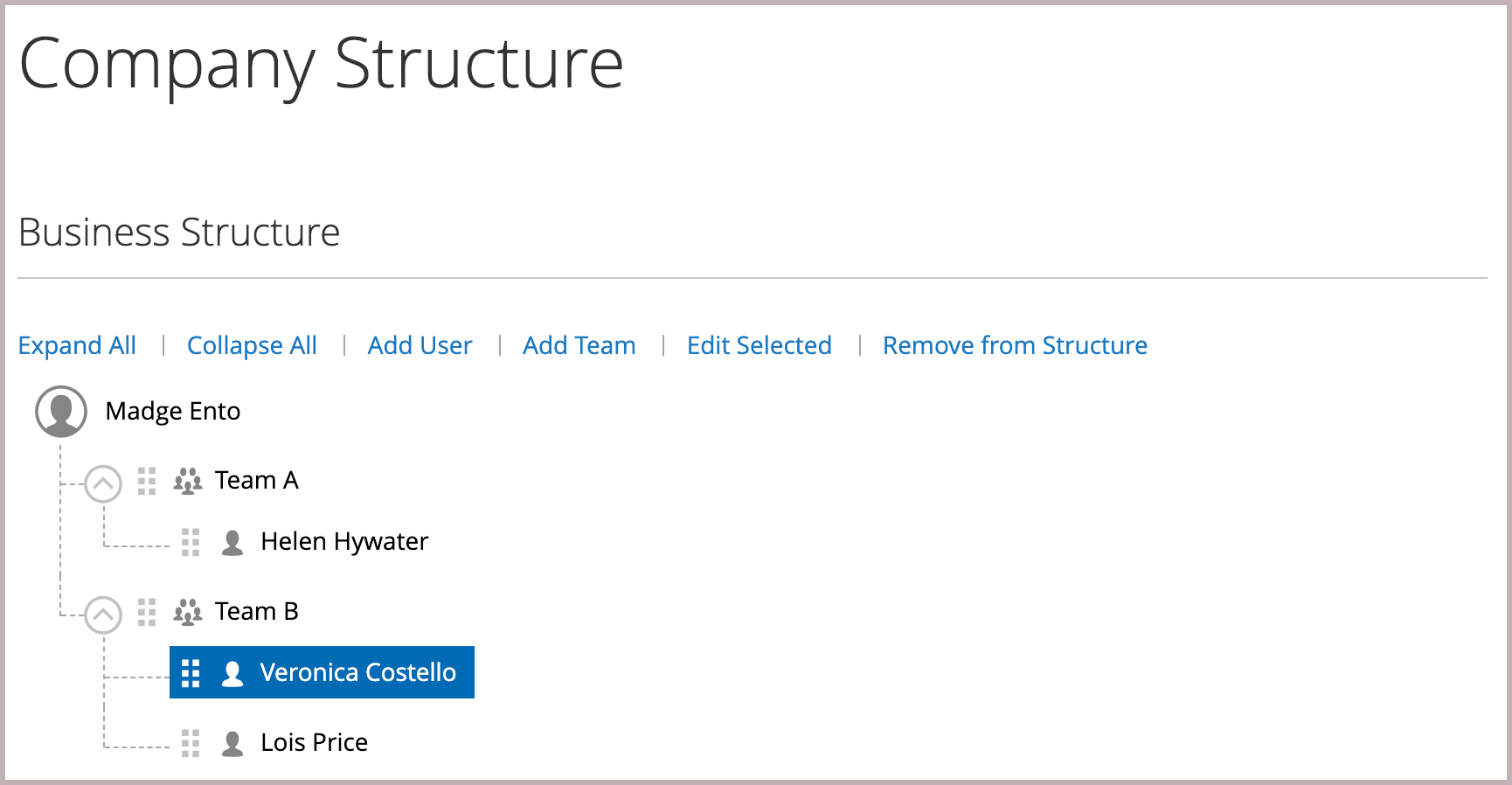
- When prompted to confirm, click Delete.
- In the Admin, the company user remains listed in the Customers grid, but with an Inactive status.
Field descriptions
| Field | Description |
|---|---|
| Job Title | The job title of the company user. |
| User Role | The role assigned to the company user. Options: Default User / (other roles) |
| First Name | The first name of the company user. |
| Last Name | The last name of the company user. |
| The email address of the company user. | |
| Phone Number | The phone number of the company user. |
| Status | The status of the company user account. Options: Active / Inactive
|
Comments
0 comments
Please sign in to leave a comment.